
How to study
Four steps. Ten minutes once, and then you just talk to your assistant. The last one is optional.
Sign in and this line will show when your connector last called in.
Pick a courseyou are here
Start here. The line you paste into your assistant says «continue where I stopped» — without a course there is nothing to continue.
Connect the connector
Paste this address into your assistant. No keys: a sign-in page opens instead.
https://www.lsystem.app/mcp
No paid subscription and no config file to edit: Claude — Desktop or in the browser — connects on the free plan, which allows one custom connector. ChatGPT takes custom connectors on paid plans only. Plans checked on 28 August 2026; they are not ours and they change.
I have Claude Desktopworks on the free plan · 5 steps · 4 screenshotschecked 11 August 2026
Sidebar → Customize → Connectors.
The free Claude plan allows one custom connector. If yours is already taken, free it up or use another client.
Top right: Add → «Add custom connector».
Name — L-System (any name, it is only shown in the list). Address — https://www.lsystem.app/mcp.
Leave OAuth Client ID and Client Secret empty under «Advanced settings»: our server registers the client itself. Press Add.
A sign-in page opens, then a consent screen. Allow access.
Restart Claude Desktop. Until you do, the tool list stays cached and the assistant honestly says it has no such tools.
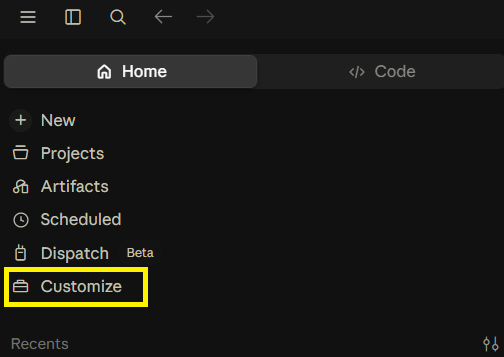
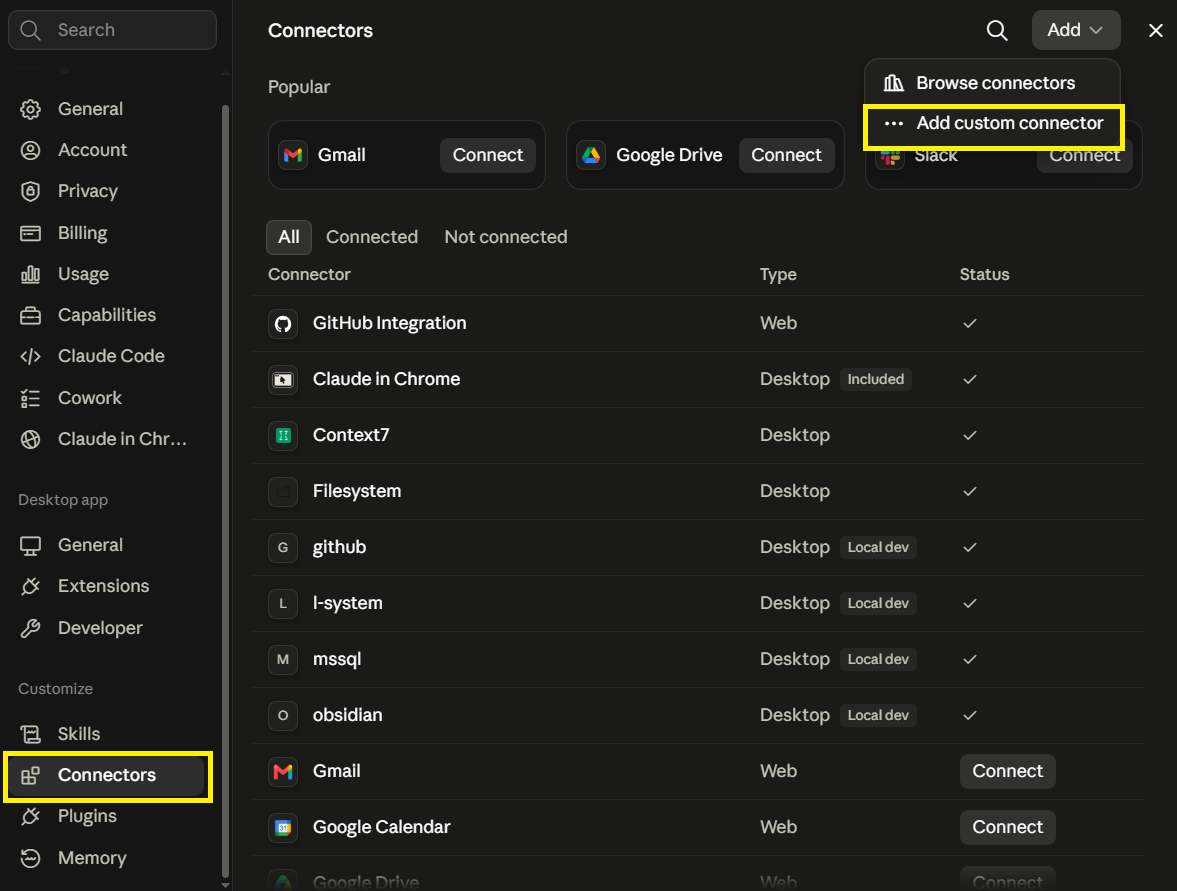
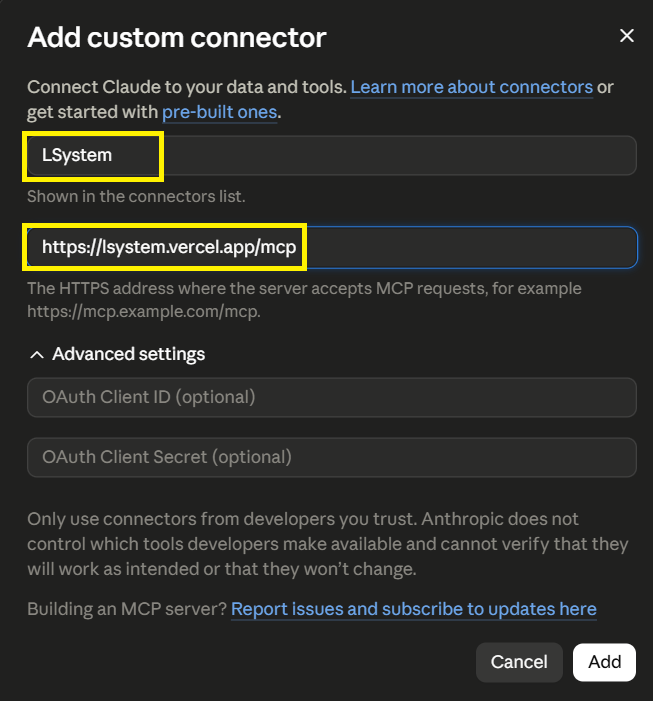
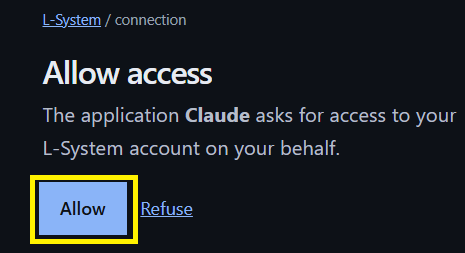
If your screen looks different — tell us, the client has changed.
I have Claude on the webworks on the free plan · 4 steps · 3 screenshotschecked 11 August 2026
Sidebar → Customize → Connectors.
The free Claude plan allows one custom connector. If yours is already taken, free it up or use another client.
Top right: Add → «Add custom connector».
Name — L-System. Address — https://www.lsystem.app/mcp. Client ID and Client Secret stay empty.
Sign in, allow access, then reload the tab.
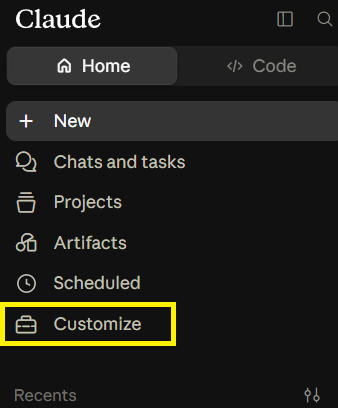
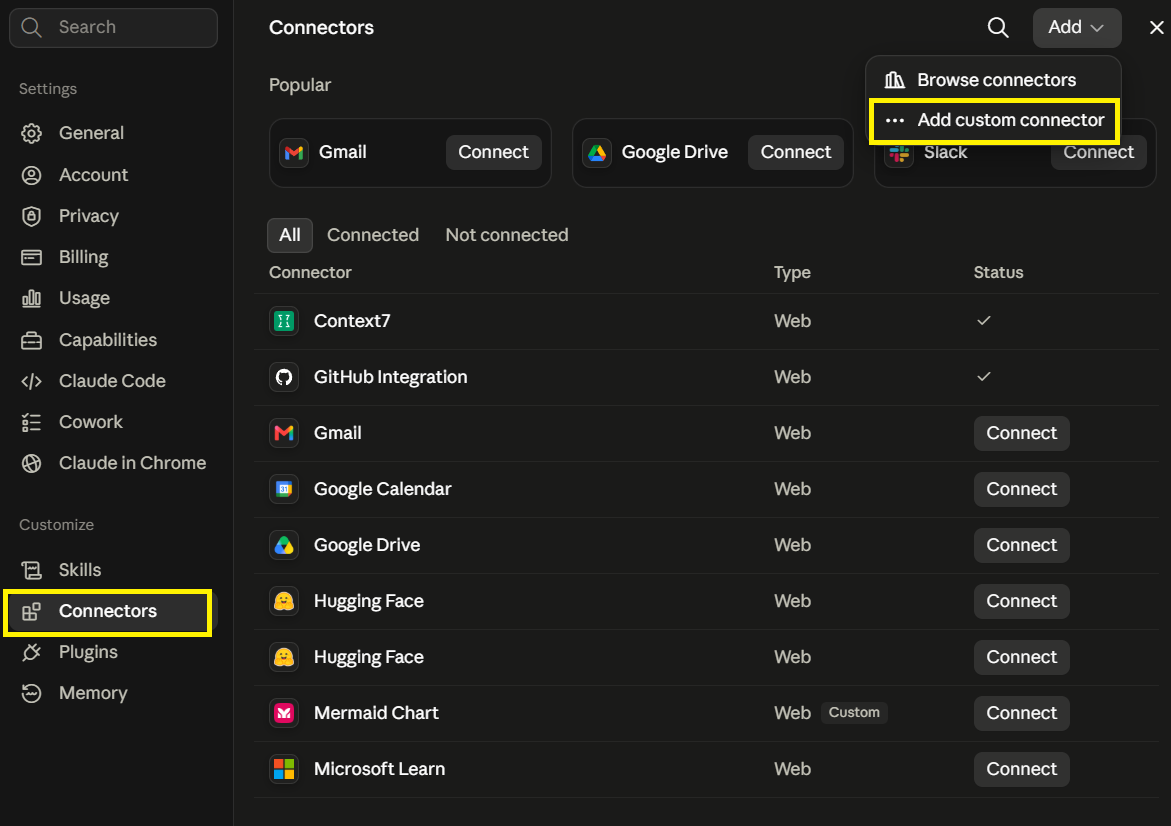
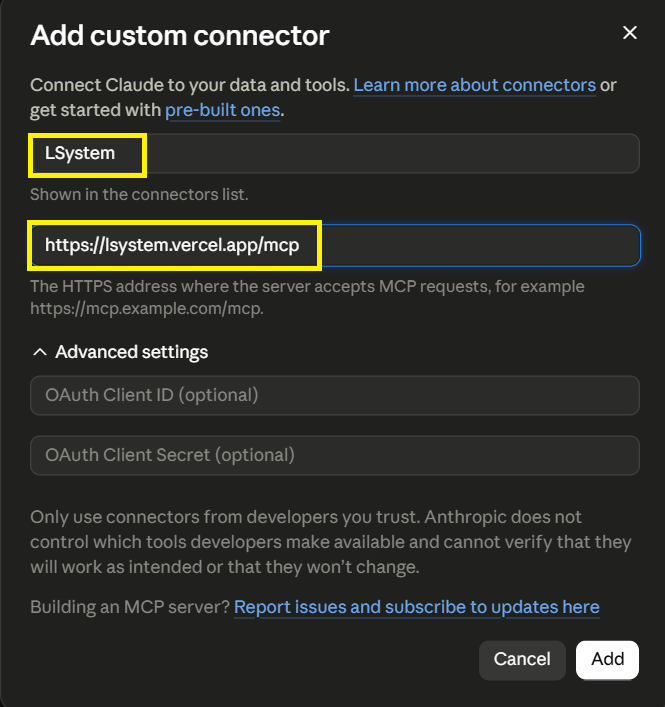
If your screen looks different — tell us, the client has changed.
I have ChatGPTpaid plan required · 7 steps · 5 screenshotschecked 13 August 2026
A paid ChatGPT plan is required.
On the free plan the Plugins section exists and the app can even be created, but its tools never reach the conversation — the assistant then looks for a plugin by name in the public catalogue and reports plugin_not_found.
Sidebar → «Plugins». Top right: «+».
Name — LSystem. Connection — «Server URL», address https://www.lsystem.app/mcp. Authentication — OAuth. Client ID and Client Secret are not needed: our server registers the client itself.
The icon is optional. Ours is right below — PNG, under 10 KB, the size ChatGPT asks for.
Tick «I understand and want to continue» and press «Create». ChatGPT scans the tools and offers to sign in — «Sign in with LSystem» — and then our consent screen opens.
In a new chat, pick L-System from the tools menu. A developer-mode app is not switched on by itself: without this the assistant sees no tools at all.
Permissions can stay at «allow low-risk actions»: our tools declare their nature, so reading and the ordinary steps of a lesson go through on their own. ChatGPT will ask you before a call that takes something back for good — issuing an exam link, which burns an attempt.
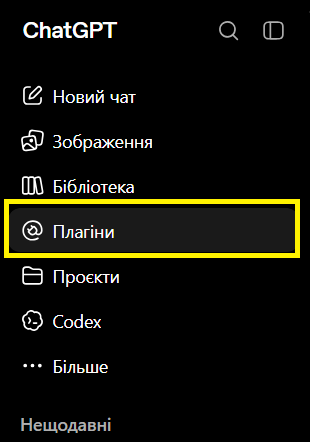
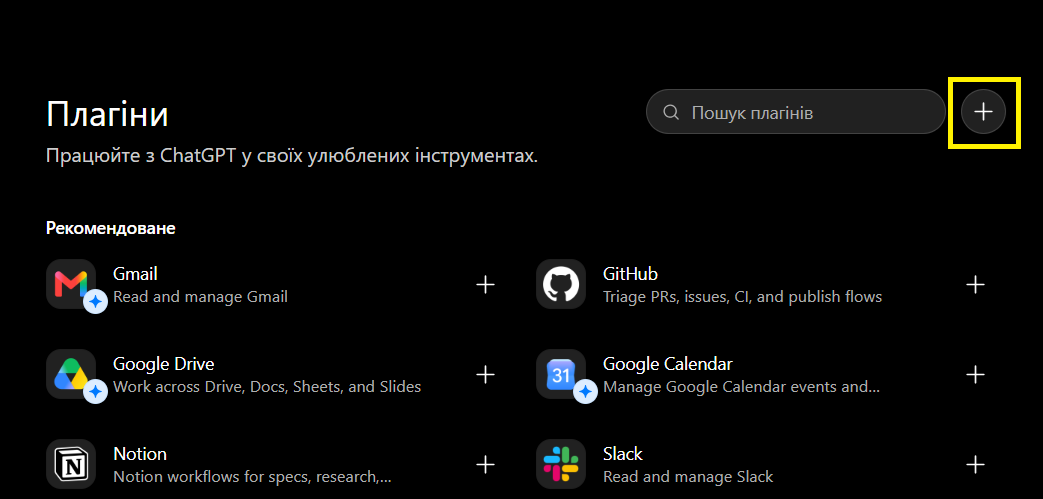
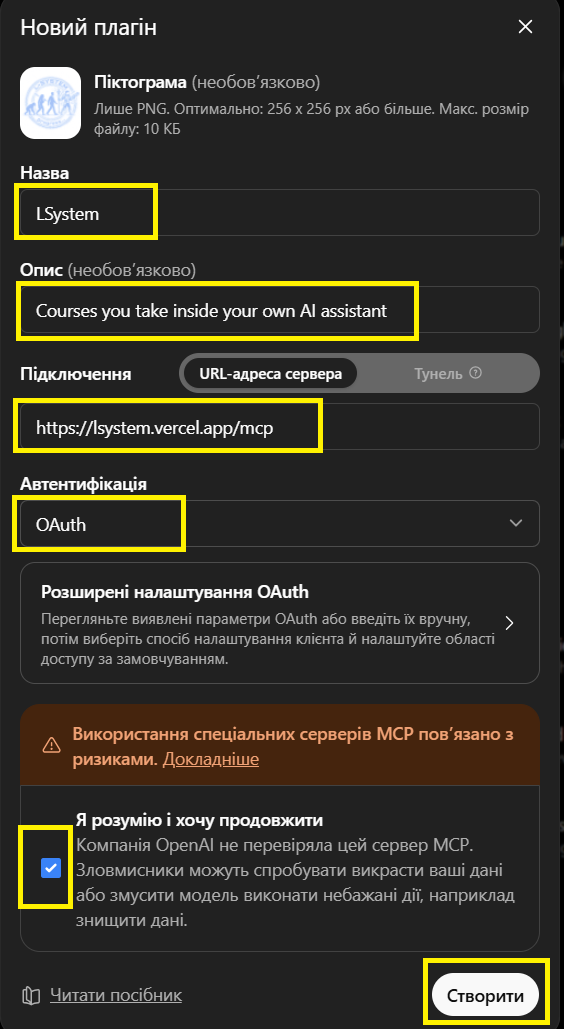
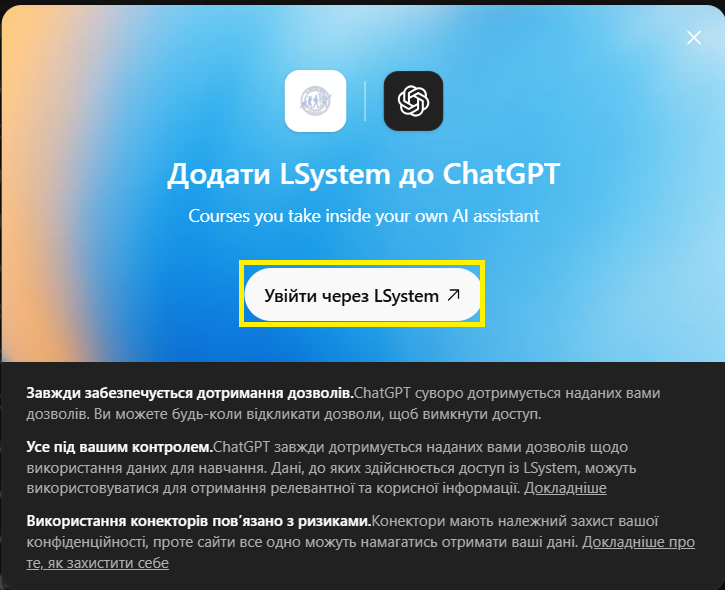
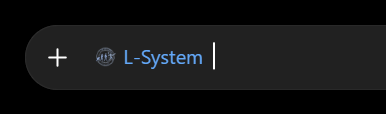
The screenshots were taken with a Ukrainian ChatGPT interface: your button labels will be in your own ChatGPT language, the layout is the same.
If your screen looks different — tell us, the client has changed.
I have Gemini CLIa settings file to edit · 3 steps · 1 screenshotchecked 11 August 2026
Open the settings file and add the mcpServers block below. If the file already has other sections, keep them — add only mcpServers.
The field is httpUrl, not serverUrl: with the wrong name the CLI starts silently and shows no tools.
~/.gemini/settings.json{ "mcpServers": { "LSystem": { "httpUrl": "https://www.lsystem.app/mcp", "authProviderType": "dynamic_discovery", "oauth": { "enabled": true, "scopes": ["learner"] }, "timeout": 30000, "trust": false, "description": "LSystem: каталог курсов, материалы и прогресс. Экзамен сюда не приходит." } } }authProviderType: dynamic_discovery means sign-in happens through our site — no keys and no token in the file.
Restart the CLI. On the first call it opens a browser for sign-in.
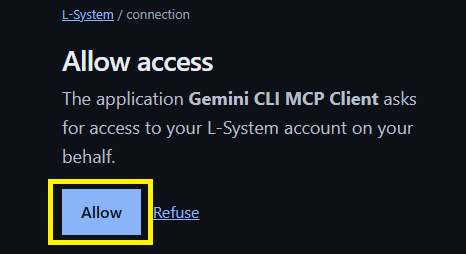
If your screen looks different — tell us, the client has changed.
I have Antigravityworks on the free plan · a settings file to edit · 4 steps · 2 screenshotschecked 11 August 2026
Settings → Customizations → «Installed MCP Servers» → «Open MCP Config».
Add the block below.
Here the field is serverUrl — Antigravity names it differently from Gemini CLI. With the wrong name the client starts silently and shows no tools.
~/.gemini/config/mcp_config.json{ "mcpServers": { "LSystem": { "serverUrl": "https://www.lsystem.app/mcp", "authProviderType": "dynamic_discovery", "oauth": { "enabled": true, "scopes": ["learner"] }, "timeout": 30000, "trust": false } } }Sign-in goes through our site: no token in the file. If your build of the client does not understand dynamic_discovery yet, use the token fallback described under these tabs.
Restart the client and allow access in the browser window that opens. The connector list should show the tools; their number is a good sanity check.
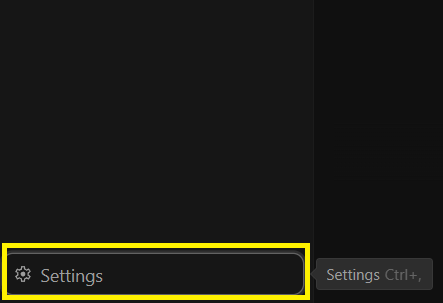
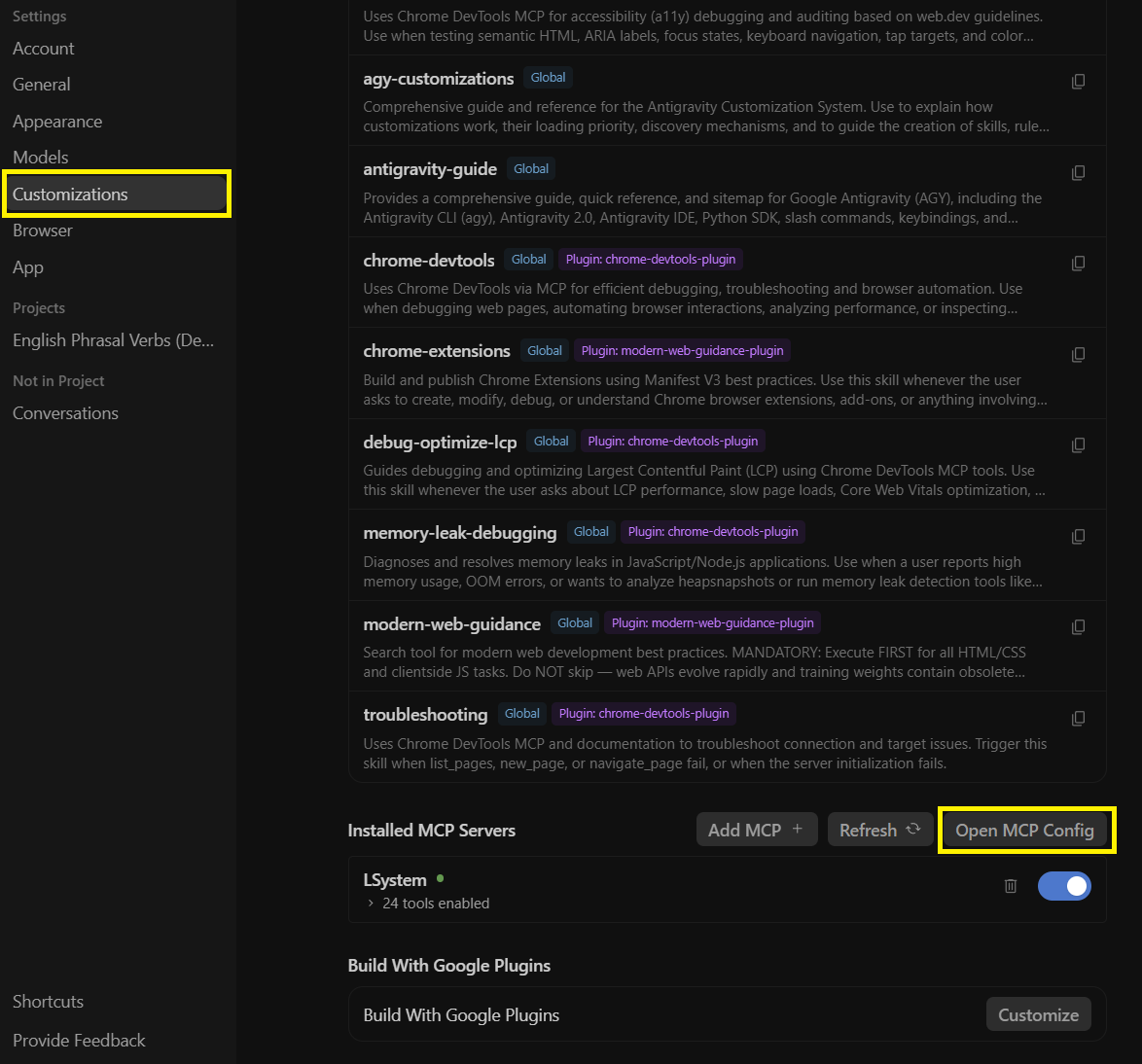

If your screen looks different — tell us, the client has changed.
Another client? Any assistant that can add a custom MCP connector will do: it needs the address above, and nothing else.
A client without OAuth connects with a personal token — the path exists, and it has a price. How the fallback works
Start the lesson
Paste this line into your assistant. It does not name a course on purpose: with one course your assistant takes it; with several it lists them and asks which one you are continuing. You will choose every session, and that is not a fault.
Study with me through the L-System connector: connect, take my settings and continue the course from where I stopped. If the l-system tools are missing or not responding — tell me and stop, do not make anything up.
The last sentence matters most. Everything else comes from the server — and it is needed exactly when the server is not there.
Pass the exam and get your certificate
The exam runs here, on the server, in your browser. Pass it and the server issues a certificate with a 16-character code and signs it. You can forward the link to anyone: checking it needs neither a login nor an answer from us — the page re-checks the signature itself, every time it is opened.
What this document attests
This exam was taken in a browser on the L-System server, past the AI assistant: the questions are not passed through the connector and do not leave the server.
Signed: the holder’s name, the certificate code, the course, its major version, the result and the date of issue. They cannot be changed without breaking the signature.
What it does not
The holder’s identity. The name is the one given at registration, and we do not check it against any document.
Say how to teach youoptional
Form, look, pace. Set once — your assistant picks them up on connection, and you stop explaining the same thing every session. Skipping this is fine: the defaults work.
If it behaves oddly
- The login window opened, access was granted — and your assistant has no tools
- The most common failure. Clients cache the tool list, so after we ship your assistant honestly sees no new ones. Disconnect the connector and add it again — or restart the client.
- It wrote the lesson itself, without asking the server
- Check that the connector is on and its tools are visible, then paste the “do not make anything up” line again.
- It names progress that does not match the site
- The site is right. Ask it to call get_progress and read the numbers from there.